How To Set Up Your Gaming Consoles
Start playing online right away

Feb 17, 2025 | Share 


Gaming
It’s always exciting to break open a new console, but most aren’t ready to play right out of the box. Quite a few of us have childhood memories of our parents spending half of Christmas Day plugging in cables, screwing down spade lugs, and messing with VCR settings before we were able to try out our new game system.
Fortunately, modern systems are usually pretty easy to get set up, so we’ll walk you through how to get yours up and running right out of the box.
In this guide:
How to set up the PS5 | How to set up the Xbox | How to set up the Nintendo Switch
In this guide:
General steps
While there are important differences between different consoles, they all follow roughly the same basic steps:
- Connect the console to your TV with the supplied HDMI cable.
- Plug the power cable into an available outlet.
- Turn on the console and follow the first-time setup instructions.
- If not prompted to connect to the internet during setup, go into the settings and connect manually.
Depending on your specific setup, there might be some additional steps. For example, if your TV’s HDMI ports are all in use, you might want to buy an HDMI switch so that you don’t have to unplug another device. If you’re using an older TV that doesn’t have an HDMI port, you might need to purchase an HDMI to RCA converter (or an HDMI to RF modulator, if you really want to see those modern graphics on a 1980s screen).

Are you in need of a high-performance internet connection?
Enter your zip code to see what options are available in your area.
How to set up the PlayStation 5
Once you’ve unboxed your brand new PlayStation 5, here’s how you’ll set it up:
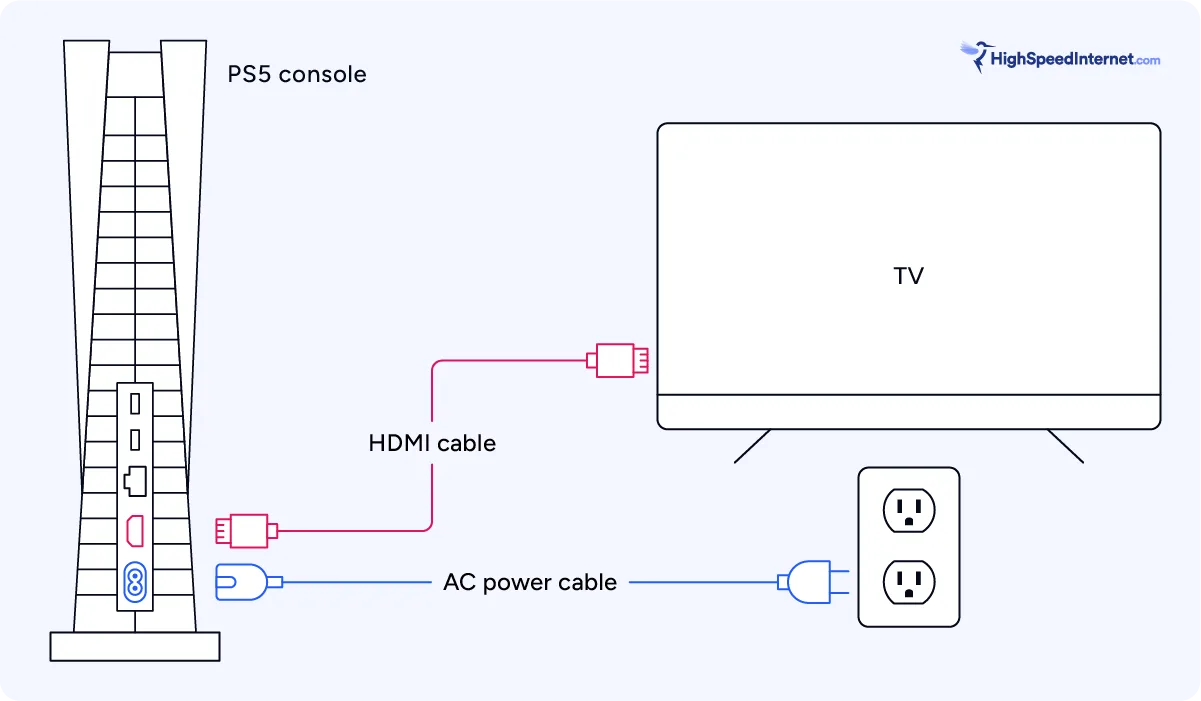
- Connect the included AC power cable into the AC IN connector on the PS5 console, then plug it into an outlet.
- Connect one end of the included HDMI cable into the HDMI OUT port on the rear of the PS5 console, and connect the other end to the HDMI input of your TV.
- With your TV set to the proper input channel, turn on the PS5 and follow the on-screen instructions to connect your controller and select your language.
- The on-screen instructions should then prompt you to set up your internet connection. Select your home Wi-Fi network from the list of available networks, and then enter your Wi-Fi password.
- Continue through the on-screen instructions to adjust display settings and power options, and finally read and accept the user agreement.
Changing internet settings on the PS5
If you didn’t set up your internet connection during the initial setup, or if you need to connect to a different Wi-Fi network, follow these steps:
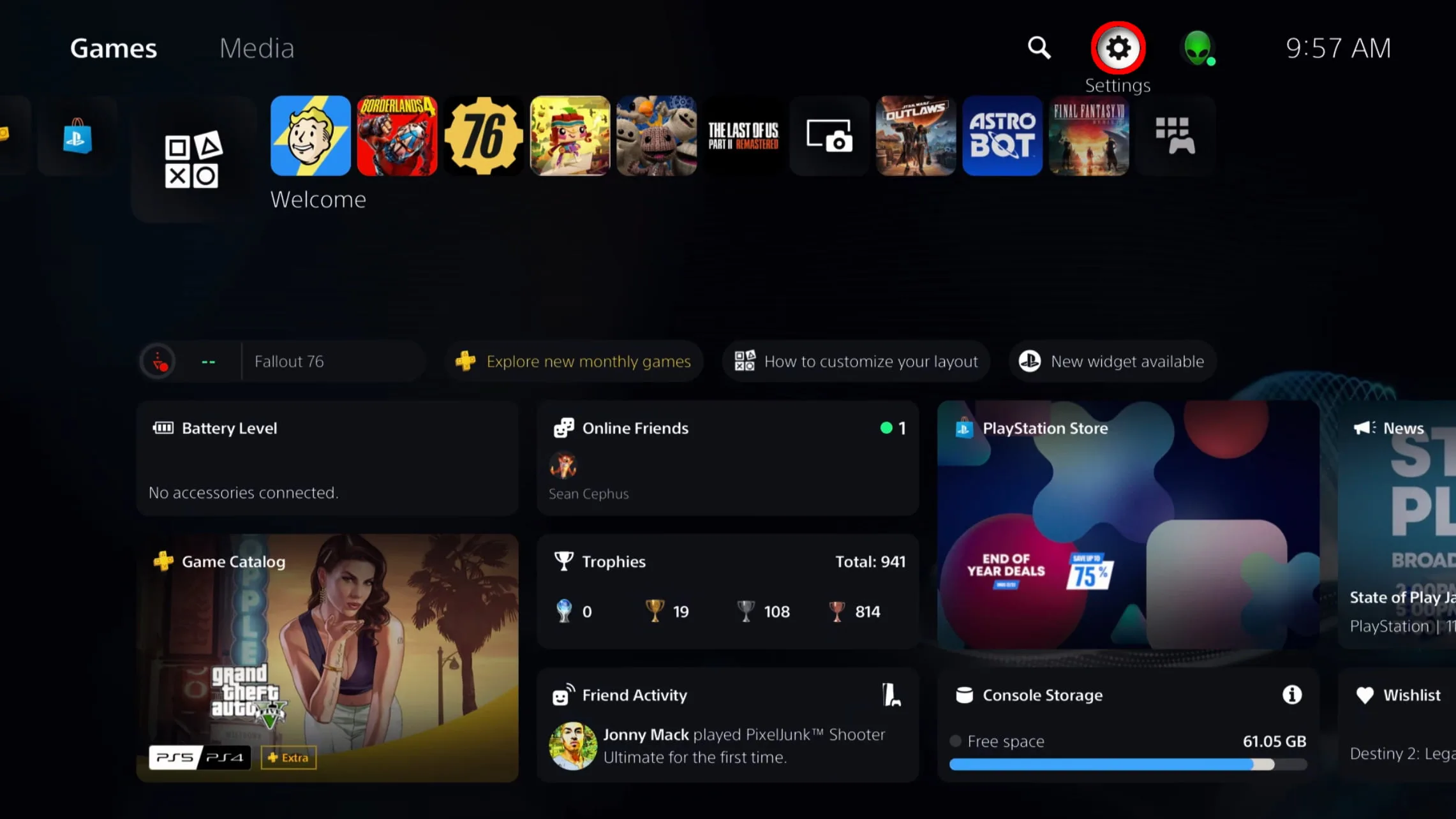
1. Select Settings from the top of your home screen.
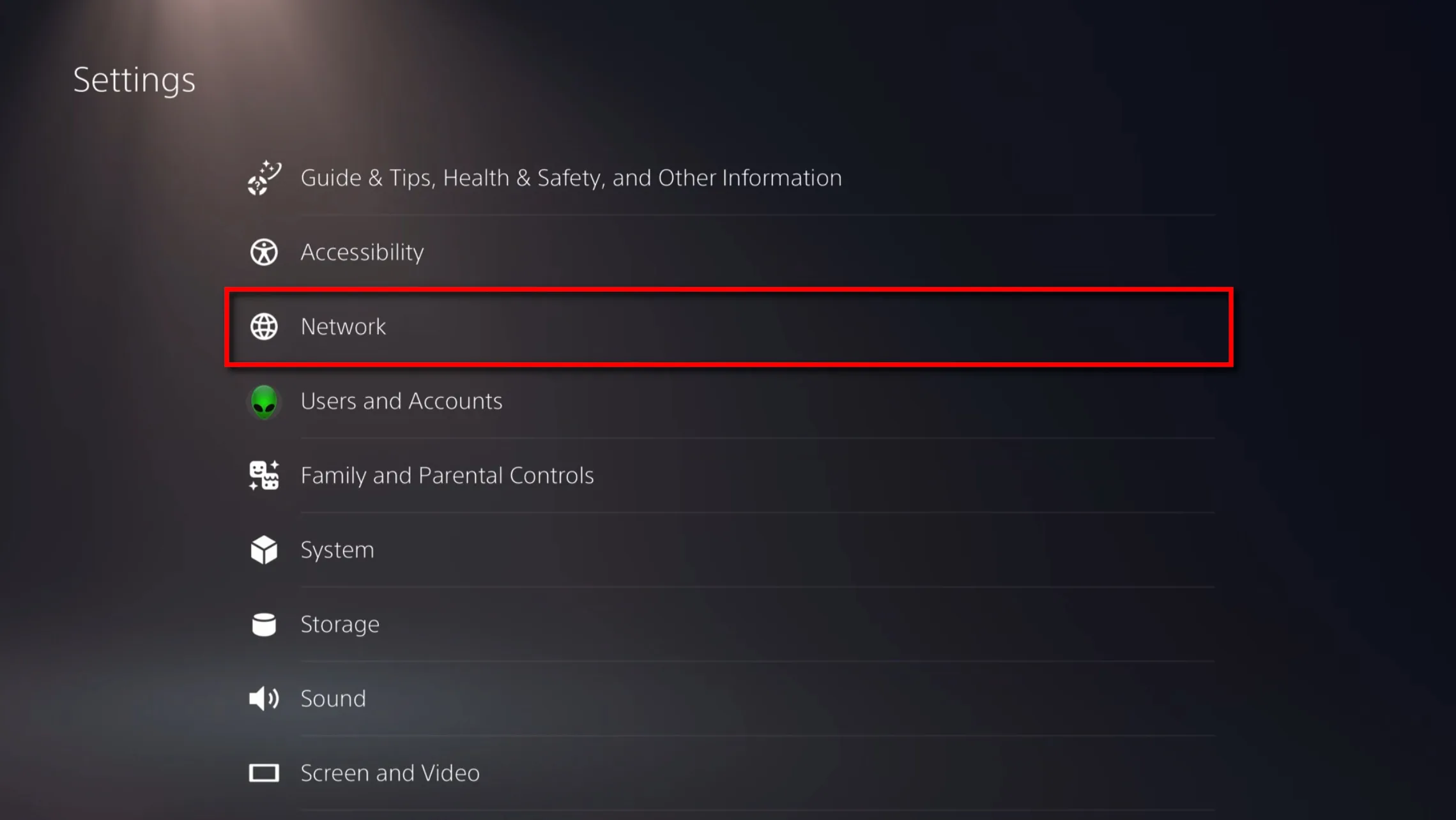
2. Select Network from the menu.
3. Select Set Up Internet Connection.
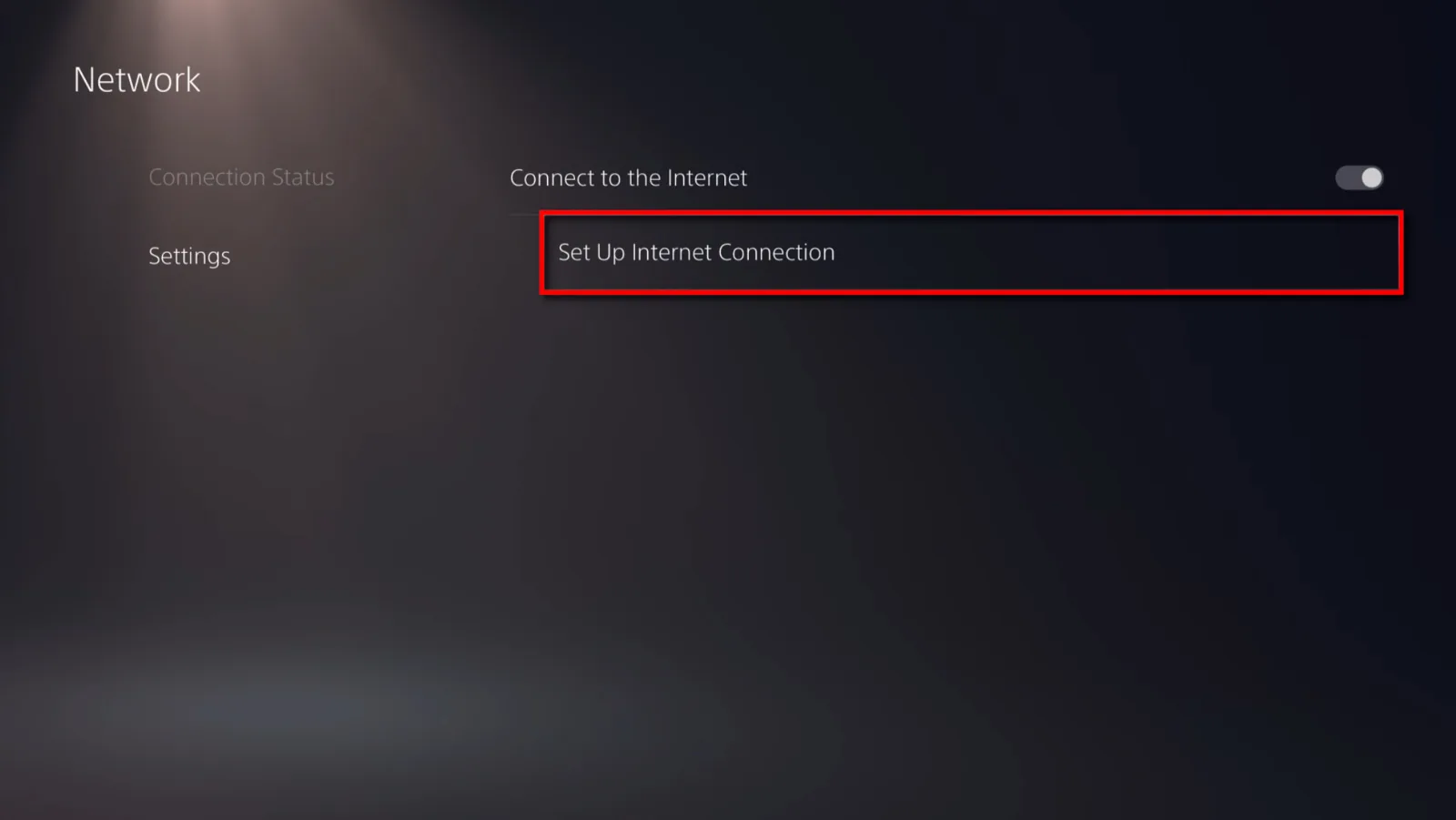
4. Select your network and enter your Wi-Fi password.
Need to set up parental controls on your PS5?
Be sure to read our guide on how to set up parental controls using the console, the web interface, and the PlayStation Family app.
How to set up the Xbox Series X (or Series S)
Whether you got the fancy Series X or the more economical Series S, setting up your ninth-generation Xbox follows the same steps:
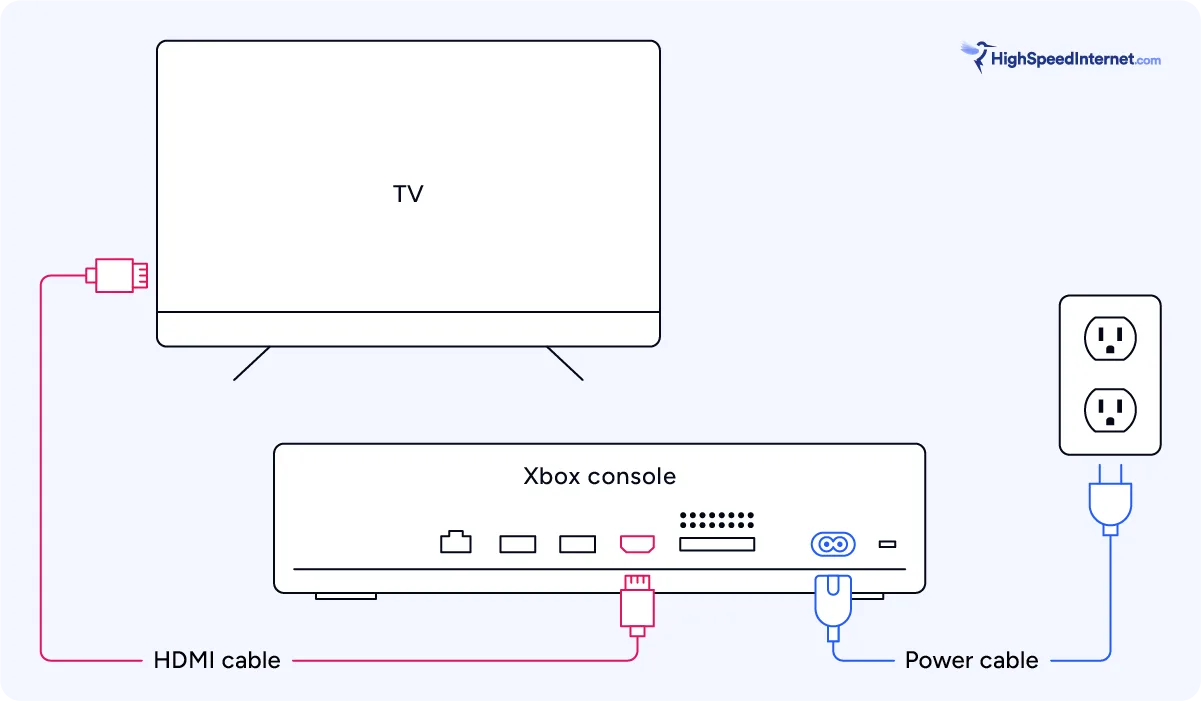
- Connect the power cable into the power cable port on the back of the console and plug it into an outlet.
- Connect the provided HDMI cable into the HDMI port on the back of the console and connect the other end to the HDMI input of your TV.
- Download the Xbox app from the Google Play Store or the Apple App Store.
- With your TV set to the proper input channel, turn on the Xbox. In the Xbox app, select Set up a console.
- Enter the code shown on your TV screen into the Xbox app.
- Follow the instructions in the app to set up your console. When prompted to set up your internet connection, select your home Wi-Fi network and enter your Wi-Fi password.
- Insert two AA batteries into your Xbox Wireless Controller, and press the Xbox button to turn it on.
- Press and hold the Pair button on the back of the controller and the Pair button on the front of the console.

Pro tip:
The Xbox X Series uses an HDMI 2.1 cable to provide 4K resolution graphics. If you need a longer cord than the one provided with the console, make sure that your new cord supports HDMI 2.1 features.
Changing internet settings on the Xbox Series X and Series S
If you didn’t set up your internet connection using the app or if you need to connect to a different Wi-Fi network, follow these steps:
1. Select Settings from the top of your home screen.
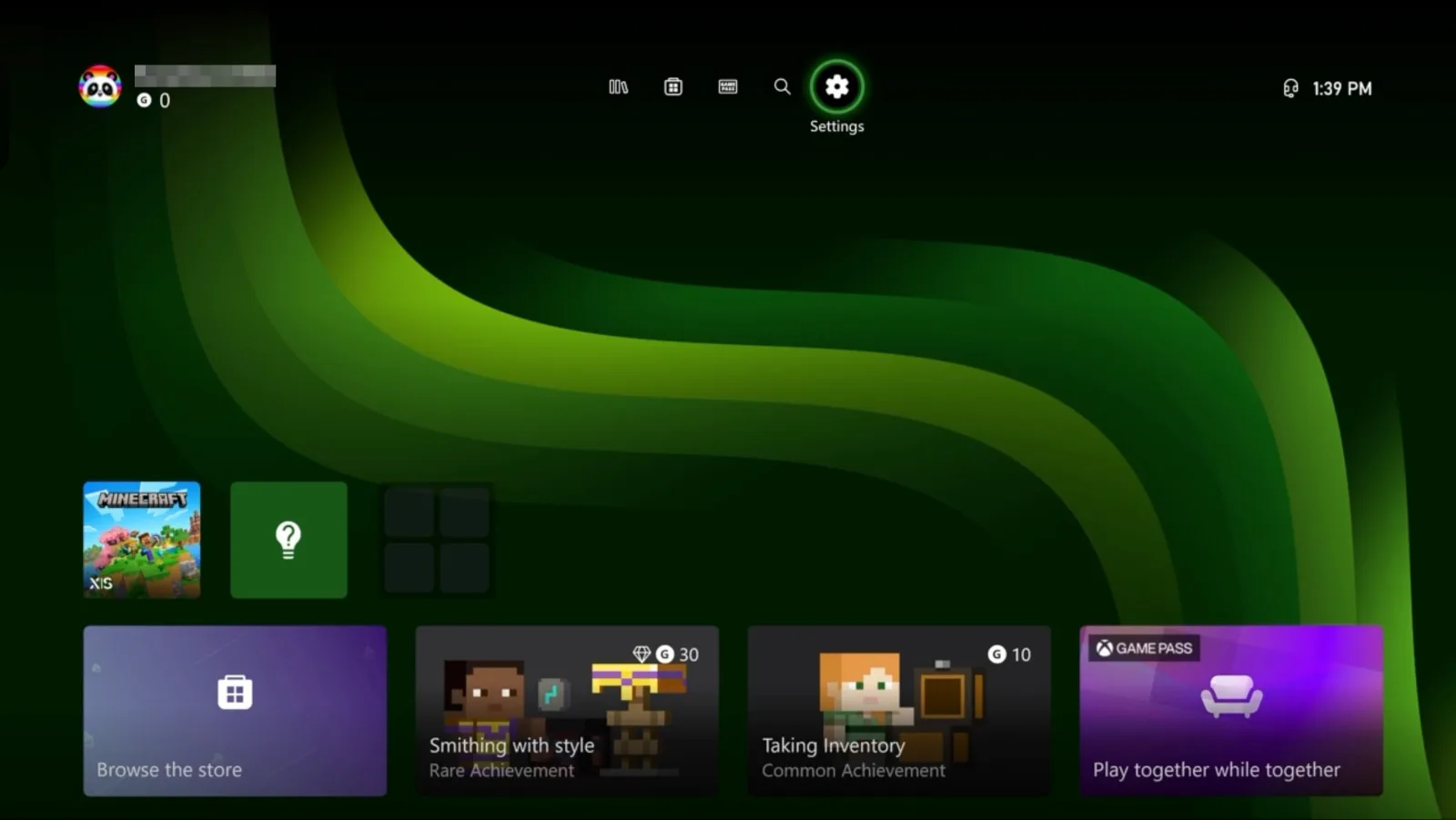
2. Under the General tab, select Network settings.
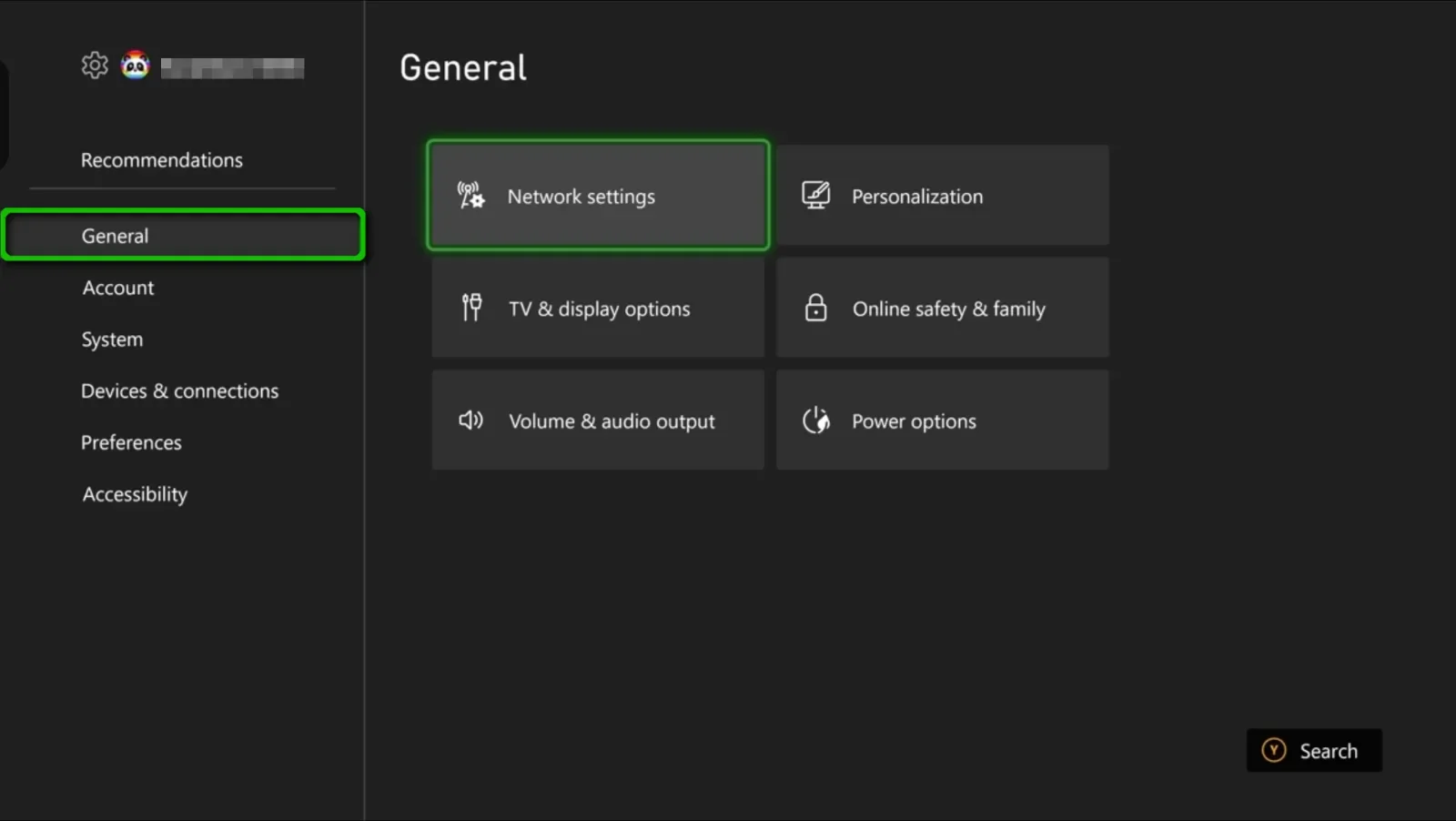
3. Select Manage wireless networks.
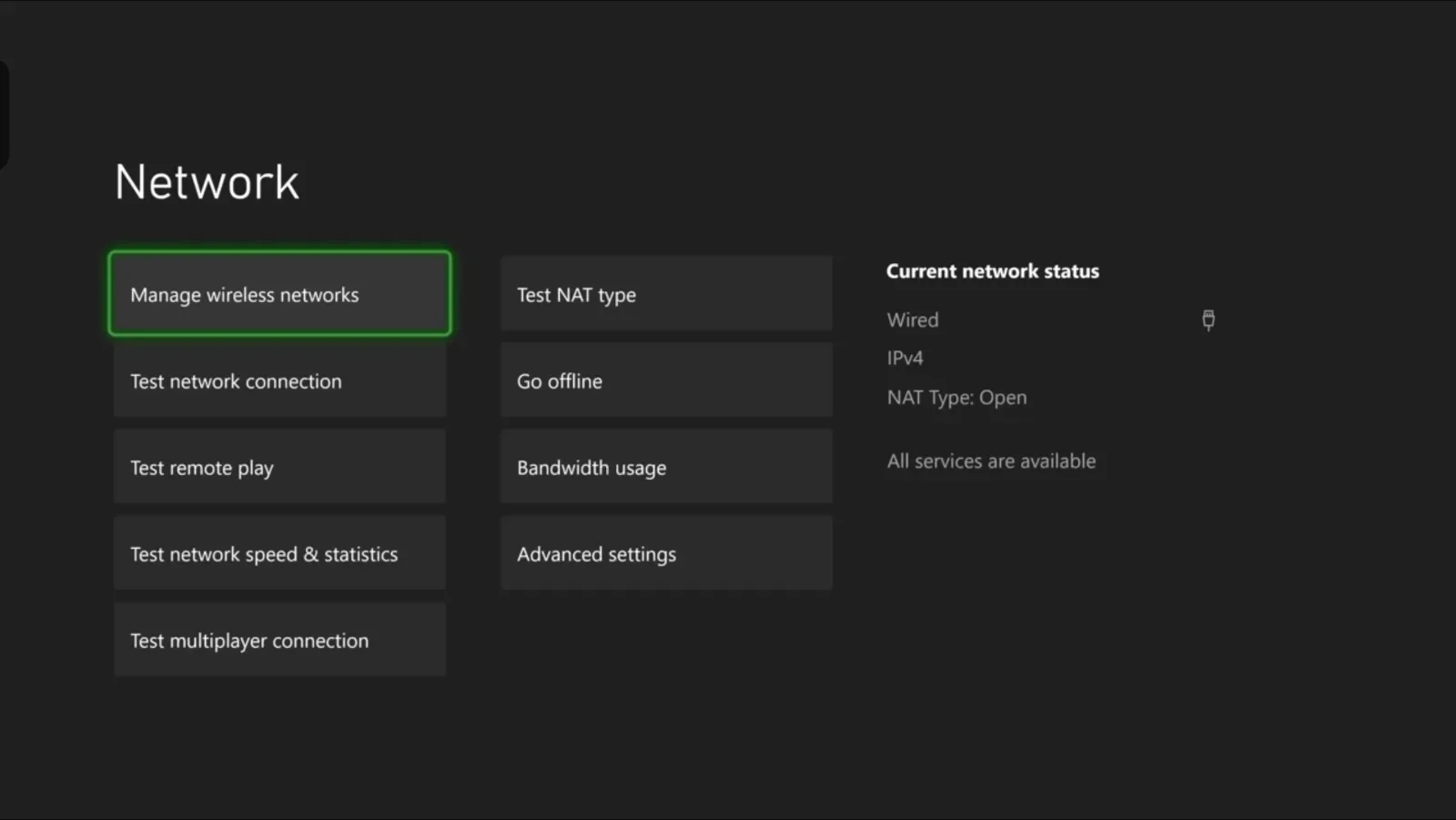
4. Select Set up wireless network.
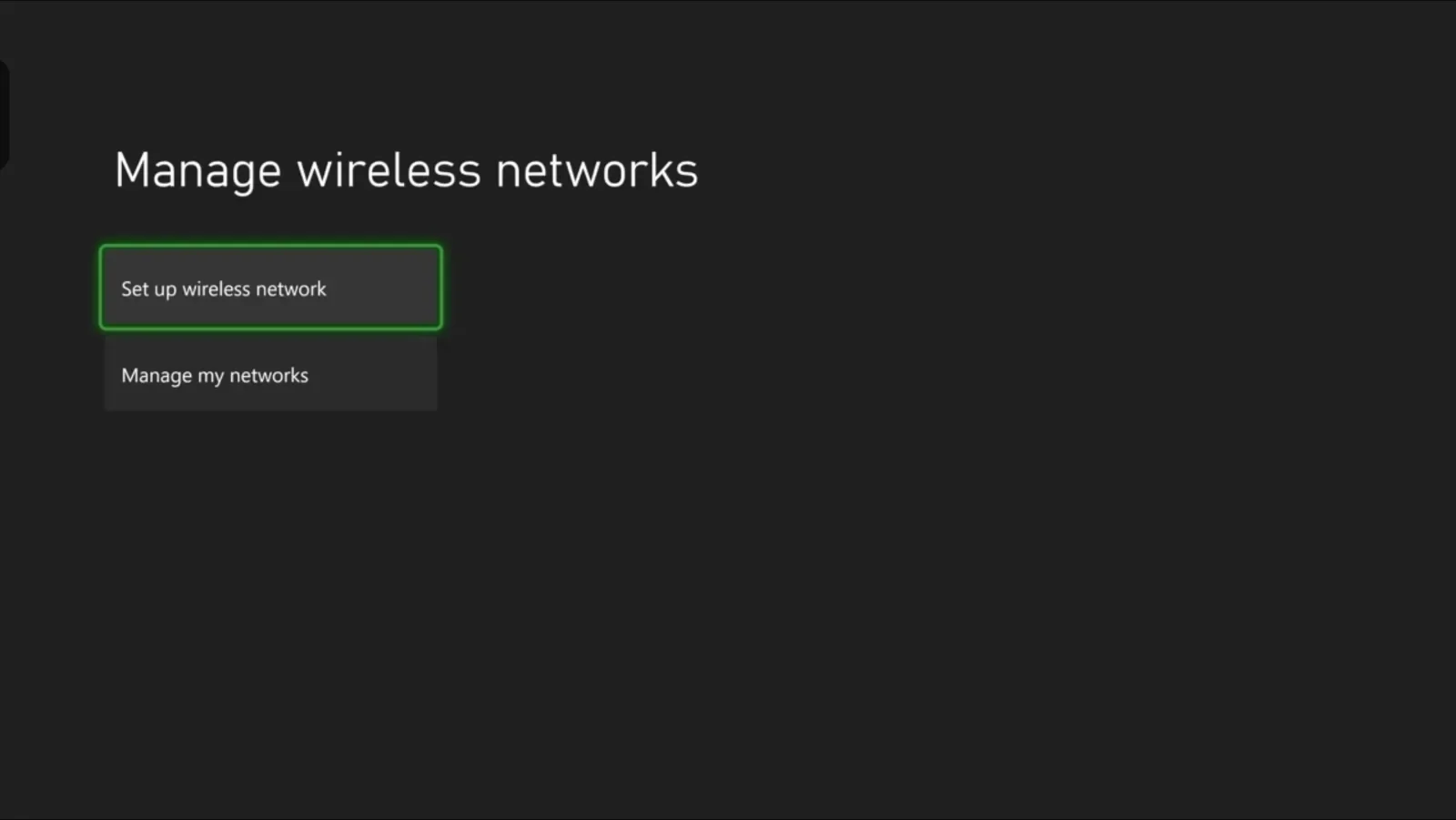
5. Select your home network from the list of available networks and enter your Wi-Fi Password.
Need to set up parental controls on Xbox or Windows?
Be sure to read our guide on how to set up parental controls using a console, PC, or the Microsoft Family Safety app.
How to set up the Nintendo Switch (or Switch 2)
To set up the Nintendo Switch, Nintendo Switch 2, or Nintendo Switch – OLED Model, follow these steps:
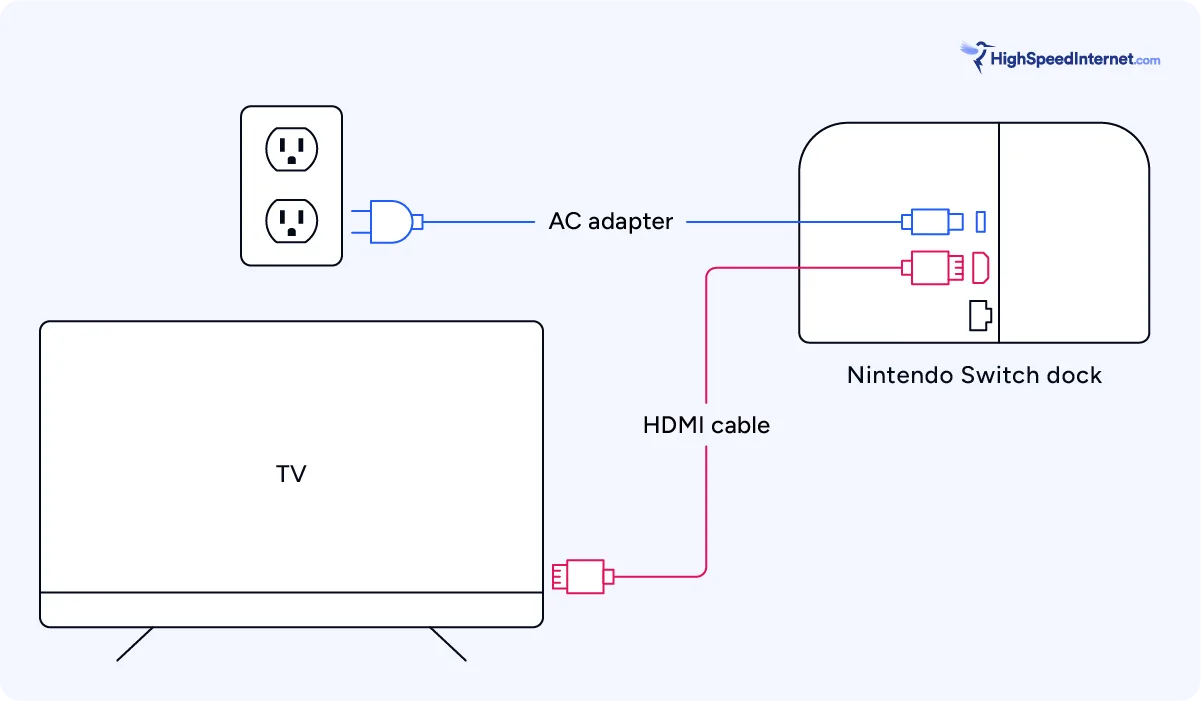
- Open the rear cover of the Nintendo Switch dock, and insert the AC adapter into the top port. Plug it into an outlet.
- Connect the provided HDMI cable into the HDMI port (below the AC and USB ports), and connect the other end to the HDMI input of your TV. Close the rear cover.
- Attach the Joy-Con controllers to the console, and place the console in the dock to charge.
- With your TV set to the proper input channel, press the Power button on the top of the console to turn it on.
- Follow the on-screen instructions to complete the first-time setup. When prompted to set up your internet connection, select your home network from the list of available networks and enter your Wi-Fi password.
Pro tip:
To set up the Nintendo Switch Lite (or to simply use the other consoles in handheld mode), skip the first three steps and instead connect the AC adapter directly to the USB port on the bottom of the console to charge the device. Turn the console on to begin the first-time setup.
Changing internet settings on the Nintendo Switch and Switch 2
If you didn’t set up your internet connection during the initial setup, or if you need to connect to a different Wi-Fi network, follow these steps:
1. Select System Settings from the main menu.
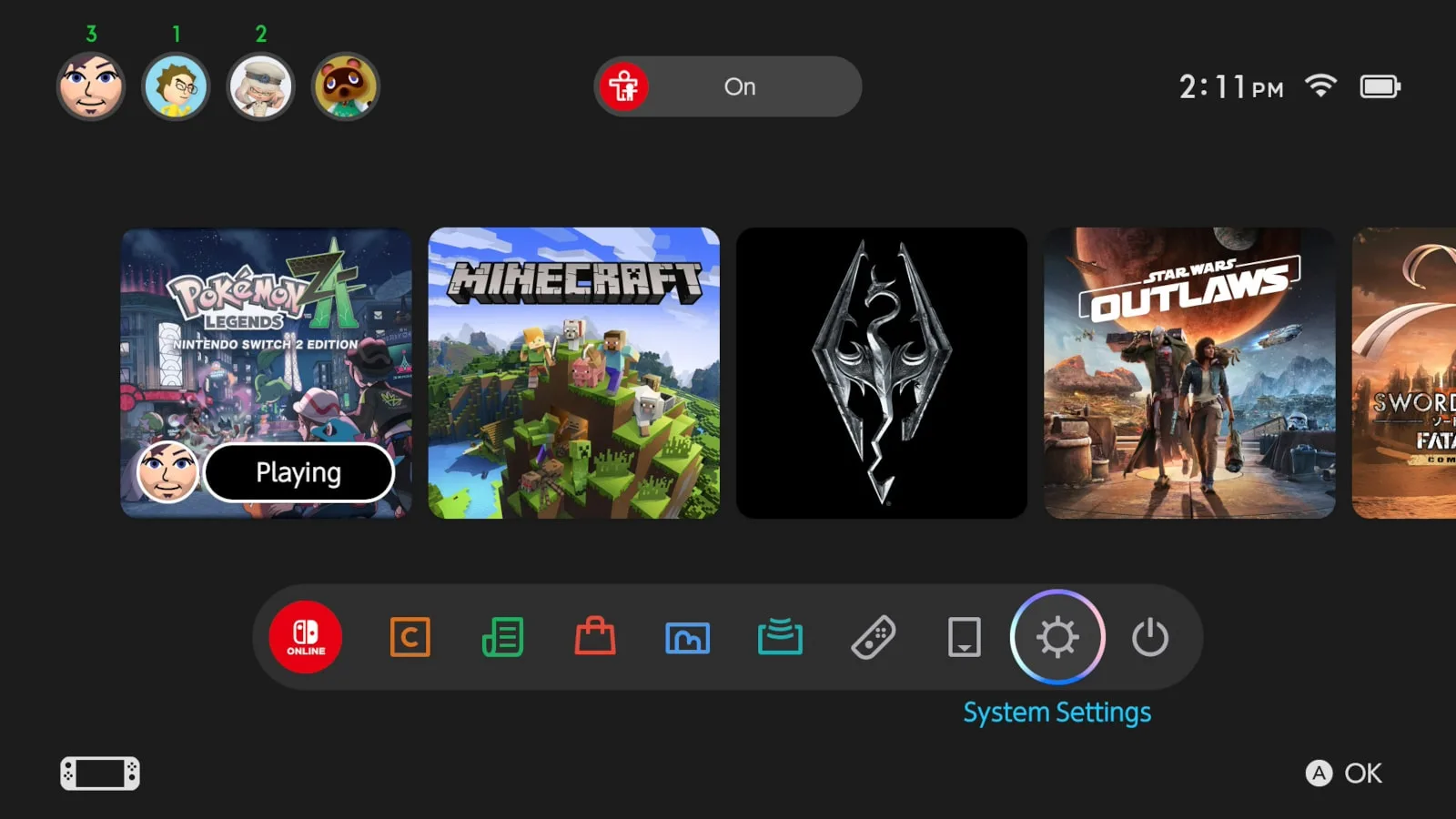
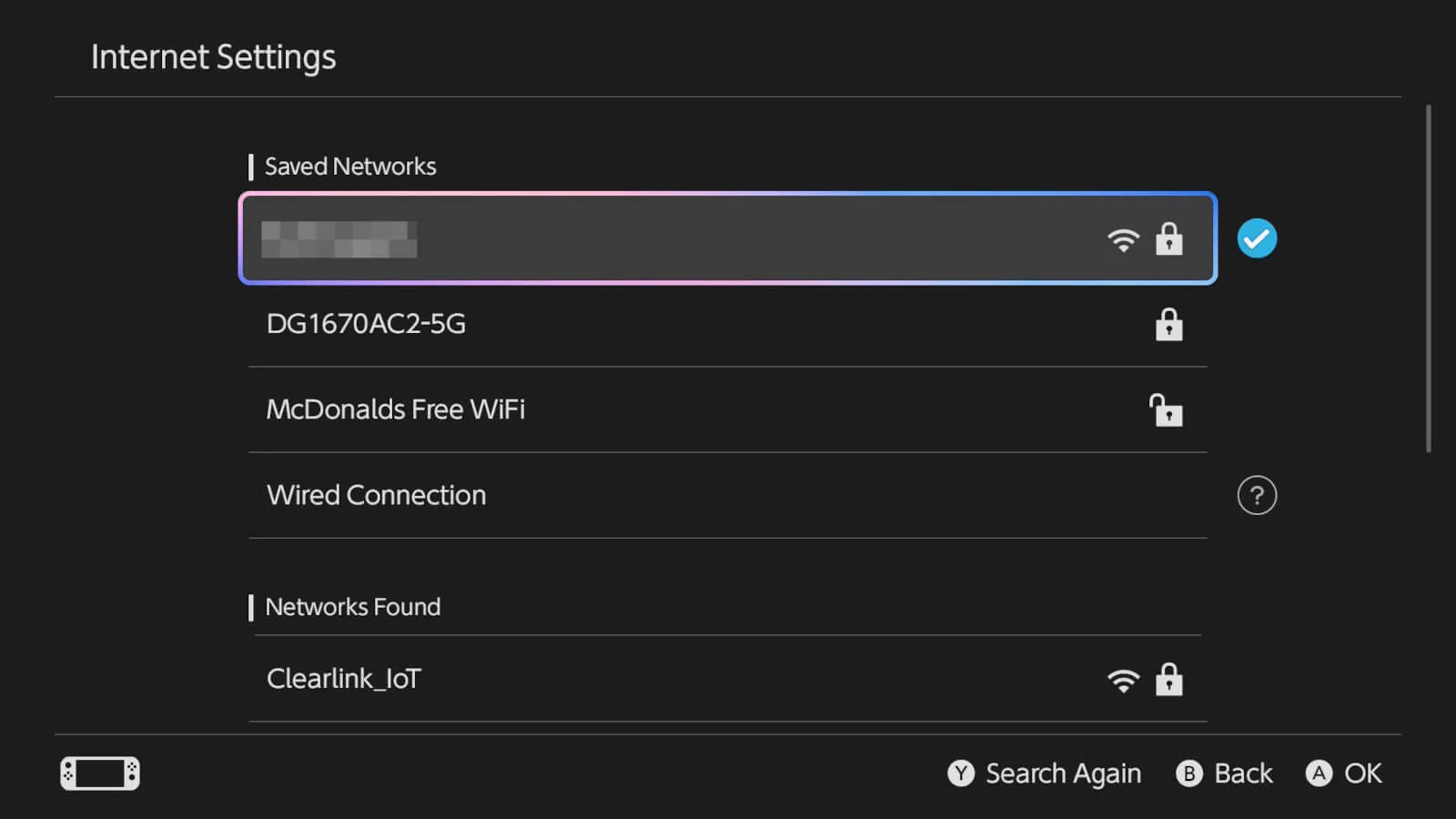
2. Under the Internet tab, select Internet Settings.
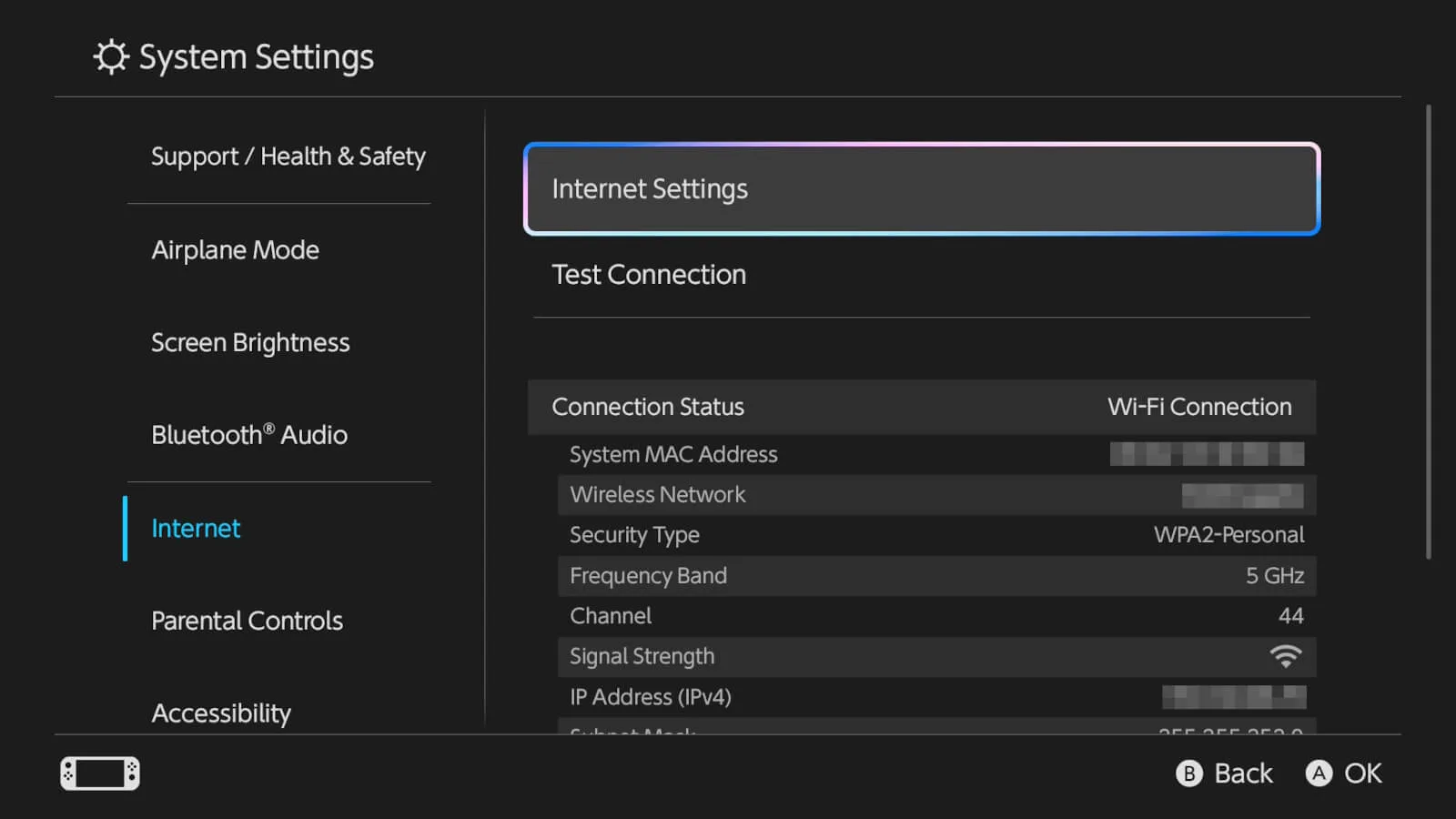
3. Select your home network from the list of available networks, and enter your Wi-Fi password.
Need to set up parental controls on a Nintendo Switch console?
Be sure to read our guide on how to set the parental controls using the console, web browser, or the Parental Controls app.
Additional resources
If you’d like to learn more about how to get the best online gaming experience, we’ve got more resources for you:
Author - Peter Christiansen
Peter Christiansen writes about telecom policy, communications infrastructure, satellite internet, and rural connectivity for HighSpeedInternet.com. Peter holds a PhD in communication from the University of Utah and has been working in tech for over 15 years as a computer programmer, game developer, filmmaker, and writer. His writing has been praised by outlets like Wired, Digital Humanities Now, and the New Statesman.
Editor - Jessica Brooksby
Jessica loves bringing her passion for the written word and her love of tech into one space at HighSpeedInternet.com. She works with the team’s writers to revise strong, user-focused content so every reader can find the tech that works for them. Jessica has a bachelor’s degree in English from Utah Valley University and seven years of creative and editorial experience. Outside of work, she spends her time gaming, reading, painting, and buying an excessive amount of Legend of Zelda merchandise.
Related Posts