How To Use Sony’s Parental Controls for PlayStation Consoles and Services
Keep your kids safe when they use any PlayStation-branded device or service

Dec 2, 2025 | Share 


Equipment Guides, Gaming, How-To, Parental Controls, Security
PlayStation has been around since 1994, and those of us who grew up with the brand probably already know how to set the parental controls for our kids. But what if you’re not a gamer and you just purchased a PlayStation 5 or PlayStation 5 Pro for Christmas?
Don’t fret. I’ll show you how to create accounts directly on the PlayStation 5 console, and then go over some additional settings in the web portal. I’ll also show you how to use the new PlayStation Family app, which makes family management super easy!
Before we begin
You don’t need a PlayStation Network (PSN) account to play physical and single-player games offline. However, you need an account for everything else: console and game updates, access to PlayStation Store purchases, and all the online components. Accounts are also required to use the family controls.
You can create accounts using a web browser or a PlayStation console. We’ll use the latter since it’s the easiest of the two.
Note that a PSN account can be used with PlayStation-branded consoles and apps like the PlayStation App and PS Remote Play.

Do you have the best internet for the PlayStation Network?
Make sure you have plenty of bandwidth to play your PlayStation games online, plus allow other devices to stream 4K content uninterrupted. Enter your zip code to find the best connection!
How to create PlayStation Network accounts using a console

Let’s assume you purchased a PlayStation 5 for the family to use or gifted it to your child. You first need to create a parent/guardian account, and then make an account for each child.
Create a parent/guardian account
Step 1: Select Add User on the console, followed by Get Started.
Step 2: Agree to Sony’s licensing agreement to proceed.
Step 3: Select Create an Account.
Step 4: Enter your date of birth and then select Next.
Step 5: Select your country or region and preferred language, and then select Next.
Step 6: Enter a valid email address, create a password, re-enter the password, and then select Next.
Step 7: Select an avatar image for your account ,and then select Next.
Step 8: Create your Online ID (gamertag), and then select Next.
Step 9: Choose a privacy profile and then select Review and Customize or Apply.
Step 10: You received an email to verify your email address. On the screen, select Already Verified or Do This Later. You must verify your email account to use your new Sony Account.
Step 11: Select OK to finish.
Step 12: Set your two-step verification by selecting Text Message or Authenticator App. Select Do This Later to set this up at another time.
Step 13: Add a mobile number or select Do This Later.
Step 14: Select OK to complete the setup.
Now that you have created an account, you can set your avatar, edit your Online ID (for a fee), link streaming services, set your payment method, and so on. But since we’re here to set up parental controls, we’ll move on to creating a child’s account.
Create a child’s managed account
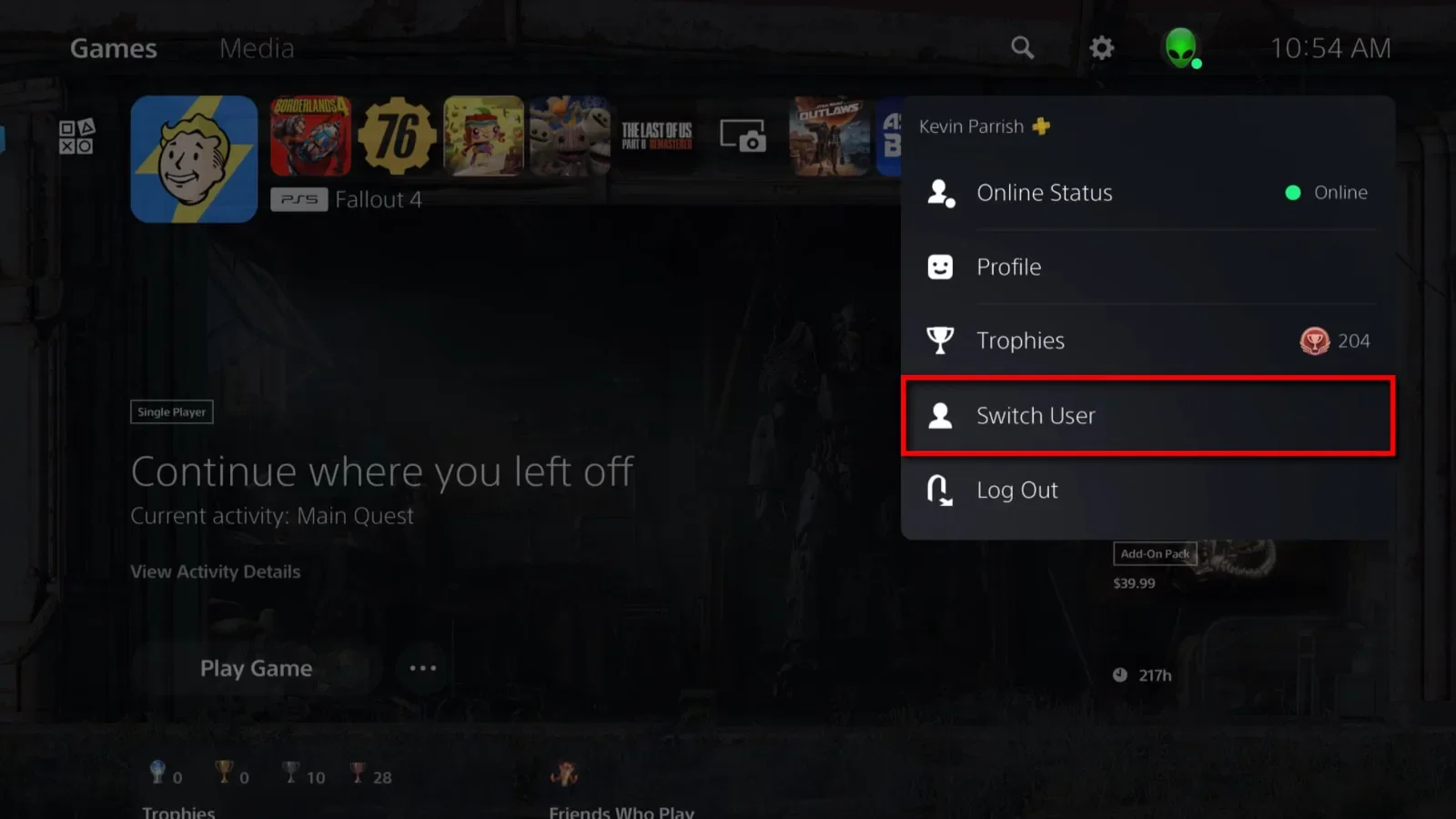
Step 1: Select your avatar on the home screen.
Step 2: Select Switch User from the drop-down menu.
Step 3: Select Add User, followed by Get Started.
Step 4: Agree to Sony’s licensing agreement to proceed.
Step 5: Select Create an Account.
Step 6: Enter your child’s date of birth and then select Next.
Step 7: Select Continue.
Step 8: Select the parent/guardian account and sign in.
Step 9: Confirm the child’s date of birth.
Step 10: Enter the child’s email address, create a password, re-enter the password, and then select Next.
Step 11: Choose a Privacy Profile and then select Review and Customize or Apply.
Here’s more on each Privacy Profile:
- Social and Open: Any player can see the child’s profile information, make friend requests, and send messages.
- Team Player: Any player can see most of the child’s profile. They must be friends of friends to chat.
- Friend Focused: Only friends can see your child’s profile and chat.
- Solo and Focused: No player can see your child’s profile or chat.
I cover the privacy settings later in the web browser portion.
Step 12: Set the Restriction Level.
Here are the restriction levels:
- Late Teens or Older
- Early Teens
- Child
- No Restrictions
Each restriction level contains customized settings. However, you can select Customize to edit the following:
- PS5 games and apps: Don’t Restrict, Age 21 or Older, Manually Set the Age
- PS4 and PS3 games and apps: Don’t Restrict, Manually Set the Age
- Blu-ray Disc: Don’t Restrict, Manually Set the Age
- DVD: Don’t Restrict, Manually Set the Age
- Country or Region (for Blu-ray Discs and DVDs): Manually Choose your Location
- Use of PlayStation VR2 and VR: Don’t Restrict, Restrict
- Web Browsing: Don’t Restrict, Restrict
- Communication and User-Generated Content: Don’t Restrict, Restrict
- Age Filtering for Online Content: Don’t Restrict, Restrict
- Monthly Spending Limit: Manually Set a Value
Step 13: Select Confirm to finish.
Step 14: Select Set Up Now to manage the child’s playtime, or select Do This Later.
Step 15: Your child received an email to verify their email address. On the screen, select Already Verified or Do This Later. You must verify the email account to use your child’s new Sony Account.
Step 16: Select OK to finish.
Do you have the best Wi-Fi for your PlayStation console?
I’ve tested a boatload of standalone routers and mesh systems. If your Wi-Fi isn’t up to snuff, check out my guide to the best gaming routers or the fastest routers I’ve tested.
How to tweak the parental controls using a console
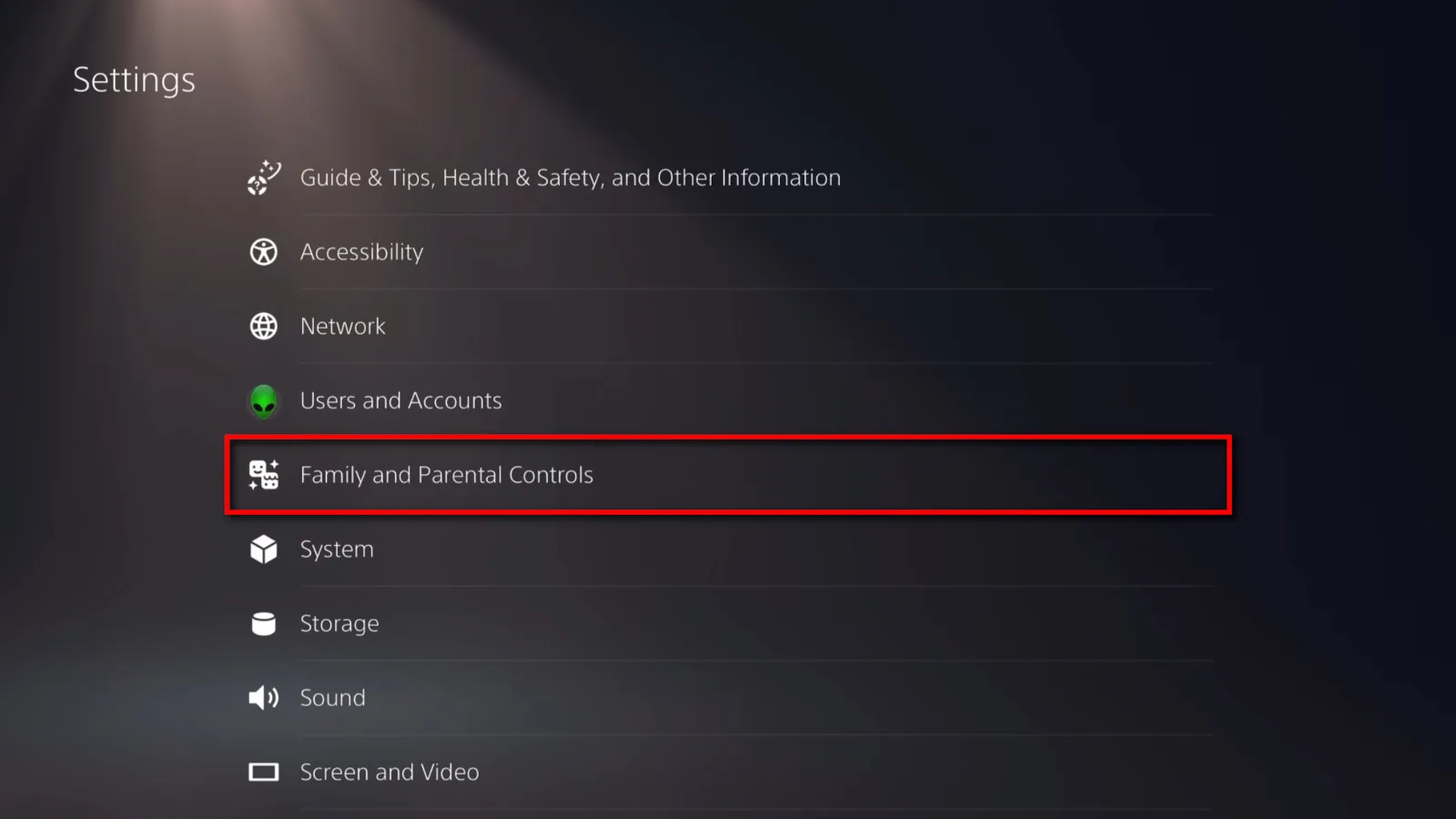
Now that the child’s account is set up, you can tweak the settings.
Step 1: On the Home screen, select the Settings gear icon located at the top.
Step 2: Select Family and Parental Controls.
Step 3: Scroll down and select your child’s account.
Step 4: Sign in to your account.
Here’s an overview of what you can set
Playtime Settings
Here you can decide when the child can play and for how long.
- Restrict Playtime: Enable/disable
- When Playtime Ends: Notify Only, Log Out of PS5/PS4/PS3
- Duration and Playtime Hours: Same Every Day, By Days of the Week
- Every Day (if chosen): Playtime Duration, Playable hours (start and end times)
- By Days of the Week (if chosen): Set hours and time
Time Zone
You already set this, but you can readjust if necessary
Parental Controls
Here, you reset the restriction level if needed.
Allowed Games
- Gameplay: You’ll see requests to play games restricted by the age level you set.
- Communication: You’ll see requests to use communication features in a specific game if the Communication and User-Generated Content setting is set to Strict.
Services and Apps
- Linked Services: See a list of services your child can link to their Sony Account.
- Authorized Apps: See a list of apps that can access your child’s information.
Privacy Settings
You’re prompted to use a QR code to change the settings in a web browser.
Family Member Information
Shows the child’s email address and Online ID
Reset Password
Enter a new password and re-enter it again to confirm.
Other Family and Parental Controls settings

In addition to setting up parental controls for your child, there are two other parts of the Family and Parental Controls section you can adjust. Take a look:
PS5 Console Restrictions
- User Creation and Guest Login: Allow, Don’t Allow
- Parental Controls for New Users: It’s similar to the restrictions portion when setting up a child’s account: Set the age level for PS5 games and apps, restrict web browsing, and so on.
- Temporarily Disable PS5 Console Restrictions: Let all Sony Account owners use any game, app, or device without parental control restrictions (on/off).
- Change Your Console Restriction Passcode: The default is 0000, so change it if you don’t want kids disabling parental controls (and they will lol).
Family Management
Select a family member or Add Family Member. If you access an existing account, you’ll see the same parental control settings you already customized, like Playtime, Parental Controls, Allowed Games, and so on.
Next, we’ll show you how to adjust the privacy settings in a web browser.
How to manage the family using a web browser
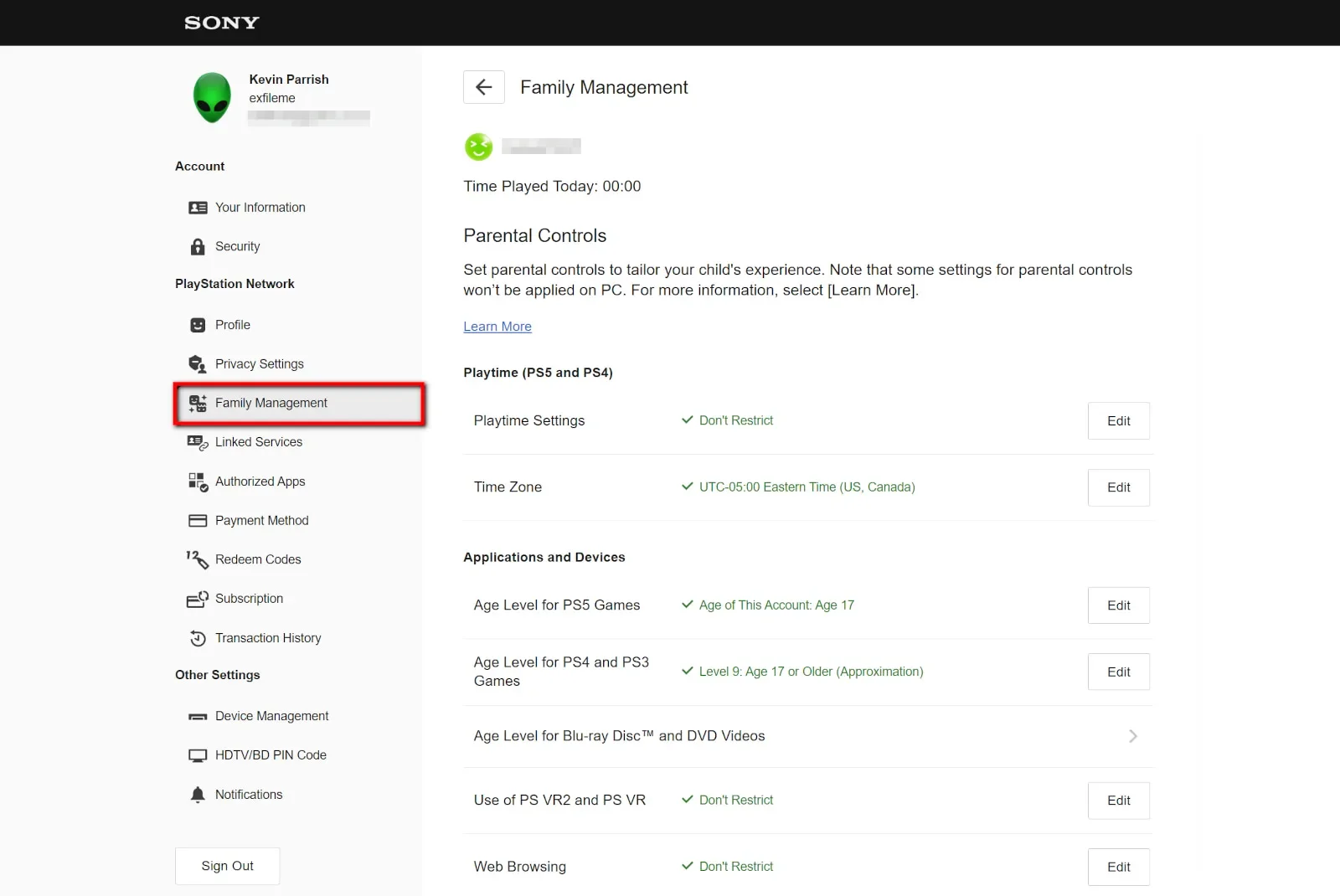
At first, I wrote instructions on how to make accounts using a web browser, but doing so on the console seemed easier. You end up accessing your accounts in a browser anyway, but at least most of the work is already done. We’ll assume you’ve already created the parent/guardian account at the very least.
Step 1: Go to playstation.com and select the Sign In button located in the top right.
Step 2: Enter your login credentials.
Step 3: Select your account avatar in the top right corner.
Step 4: Select Account Settings in the drop-down menu.
Here, you’ll see details specific to your account, like linked services, authorized apps, your payment method, and so on.
Step 5: Select Family Management on the left.
Step 6: Select the child’s account you want to modify, or select Add Family Member if you have other accounts you need to add.
You’ll see everything you’ve already set: Playtime, apps and devices, web browsing restrictions, and so on.
However, the web browser is where you’re directed when you want to set the Privacy Settings. Scroll down on the child’s account and select Edit to modify the settings. You have an option to allow the child to set their privacy settings or allow the parent/guardian.
Here’s a list of what you and your child can change.
Settings applied to PS5, PS4, and PC
- Who can see your child’s games and trophies: No One, Friends Only, Friends of Friends, Anyone
- Who can see your child’s online status and what they’re currently playing: Friends Only, Friends of Friends, Anyone
- Who can ask to be your child’s friend: Anyone, Friends of Friends, No One
- Who can interact with your child through parties, games, and messages: Anyone, No One, Friends Only
Settings applied to PS5 and PS4
- Who can see your child’s friends: No One, Friends Only, Friends of Friends, Anyone
- Your child’s personalized content: Personalized Purchase Recommendations, Personalized Advertising, Personalized Media, Standard Personalization
- Allow your child to receive crossplay invitations: Allow, Don’t Allow
- Allow your child to show read receipts on the PlayStation App: Allow, Don’t Allow
Settings applied to PS5
- Data your child provides: Full, Limited
Settings applied to PS4
- Who can see your child’s activities: No One, Friends Only, Friends of Friends, Anyone
- Who can follow your child: Friends Only, Anyone
- Who can see your child’s followers: No One, Friends Only, Friends of Friends, Anyone
- Who can see the players your child follows: No One, Friends Only, Friends of Friends, Anyone
- Who can send your child a request to watch: No One, Friends Only
How to use the PlayStation Family app
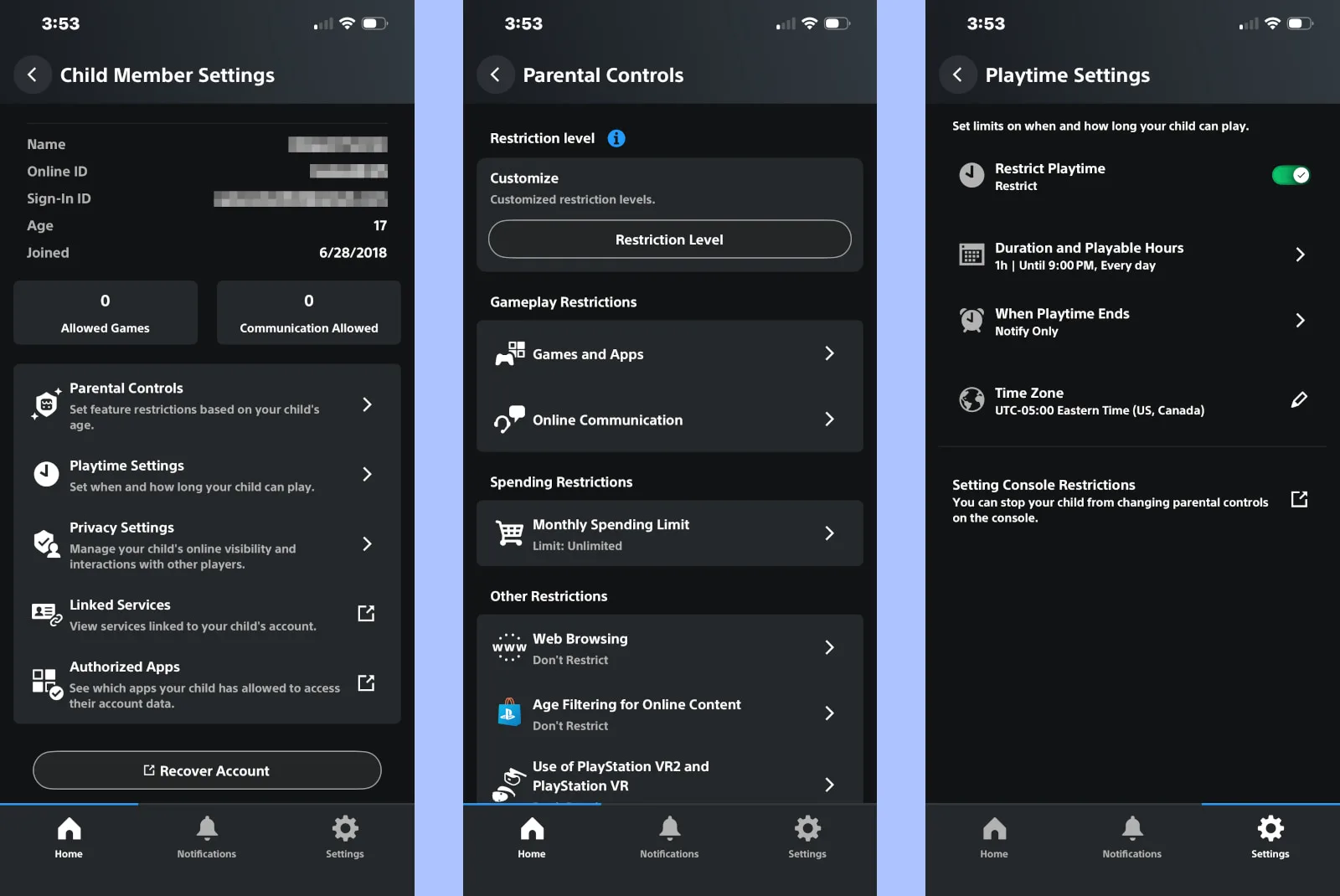
The PlayStation Family app is a new, easier way to manage your accounts. Some settings take you to the web portal anyway, but at least most of what you need is contained within an easy-to-use interface.
Step 1: Download and install the PlayStation Family app.
Step 2: Open the app and select Turn Notifications On or Not Now to get started.
Step 3: Sign in to your PSN Account. The app may automatically sign you in if you’re already logged in to the PlayStation App.
The app consists of three tabs: Home, Notifications, and Settings. The Home tab info is specific to the child account you select at the top. Here’s a rough breakdown of each tab:
Home
- Playtime for Today chart
- Playtime Settings: Set up and modify
- Activity chart
- View All Activity
- Monthly Spending Limit
Notifications
- All notifications you receive appear in this tab
Settings
- Family Management: See your accounts, add a child, add an adult
- Push notifications: Enable/disable for Playtime and Parental Controls
- Feedback: Complain to Sony about the number of times you have to log in
- Account Information: Your account info
- Service Status: Current status of all PlayStation services
- Support: Get help
- App and Legal Info: Yawn
So, let’s backtrack to the Home tab and select the “slider” Child Member Settings icon next to the child’s name.
More about Child Member Settings
Here you’ll see your child’s info, like their Sign-In ID, Online ID, the number of allowed games, and so on. There are also five sections that we’ve already customized to some degree on the console and in a web browser. I’ll be brief about each except where they’re different from the other interfaces.
Parental Controls
- Restriction Level
- Games and Apps
- Online Communication
- Monthly Spending Limit
- Web Browsing
- Age Filtering for Online Content
- Use of PlayStation VR2 and PlayStation VR
- Parental Controls on PC
Playtime Settings
- Restrict Playtime on/off
- Time Zone
- Setting Console Restrictions: Prevent the child from changing parental controls on the console
Privacy Settings
- Privacy Settings Set By: Parents/guardian, Child
- Privacy Profile (see above)
- The remaining privacy settings are already defined in the web browser instructions shown above.
Linked Services
- Takes you to your child’s PSN Account web page listing all linked services, but within the app
Authorized Apps
- Takes you to your child’s PSN Account web page listing all authorized apps, but within the app.
Recover Account
- Takes you to your child’s PSN Account web page to reset the password, but within the app
Author - Kevin Parrish
Kevin Parrish has more than a decade of experience working as a writer, editor, and product tester. He began writing about computer hardware and soon branched out to other devices and services such as networking equipment, phones and tablets, game consoles, and other internet-connected devices. His work has appeared in Tom’s Hardware, Tom's Guide, Maximum PC, Digital Trends, Android Authority, How-To Geek, Lifewire, and others. At HighSpeedInternet.com, he focuses on network equipment testing and review.
Editor - Jessica Brooksby
Jessica loves bringing her passion for the written word and her love of tech into one space at HighSpeedInternet.com. She works with the team’s writers to revise strong, user-focused content so every reader can find the tech that works for them. Jessica has a bachelor’s degree in English from Utah Valley University and seven years of creative and editorial experience. Outside of work, she spends her time gaming, reading, painting, and buying an excessive amount of Legend of Zelda merchandise.
Related Posts