How To Use Parental Controls with Google Assistant
Set up voice controls on your Android devices

Apr 29, 2026 | Share 


How-To, Security
Kids have a tendency to figure out how to use technology better than their parents, which can make reining them in a challenge. Voice controls add a new angle to this problem, since your kids don’t even need to know how to read to get a surprising amount of control over their devices.
Fortunately, voice controls like Google Assistant have parental controls you can put in place to help manage your kids’ access. We’re going to show you the basics of setting up parental controls for your Assistant-enabled Android device.
Setting up parental controls on Google Assistant devices
Google has a lot of different parental control systems across different devices and apps. Many of these systems overlap and can work together, which is both helpful and, at times, very confusing. This method is specifically for setting up parental controls on devices like phones, tablets, and smart displays that use Google Assistant voice controls.
To get started using voice commands, follow these steps:
1. Activate Google Assistant by saying “Hey, Google” or through the appropriate button, tap, or gesture.
2. Say “Open Assistant settings.”
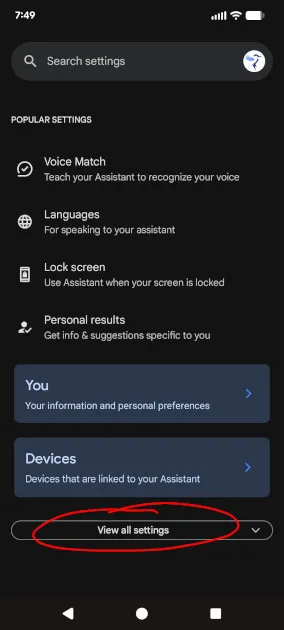
3. If the parental control settings aren’t visible, tap on View all settings.
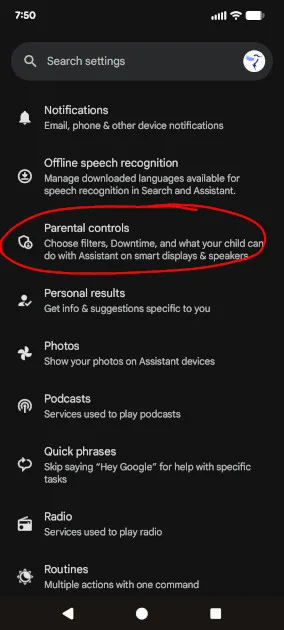
4. Scroll down toward the bottom of the list and tap Parental controls.
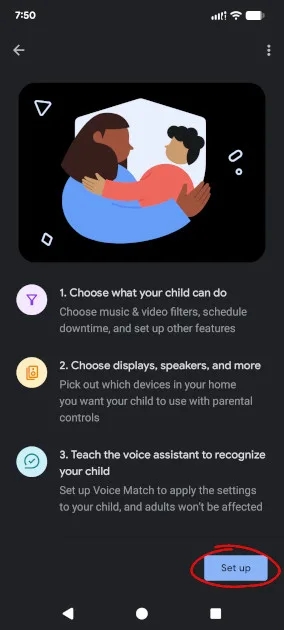
5. At the bottom of the screen, tap the Set up button.
At this point, you can sign into your kid’s account if you’ve already set up a supervised Google Account, or you can set up a new one. Only one Google account can be active on a device at any given time, so you will be signed out, and the kid’s account will be signed in.
The app will then guide you through the process of creating an account or setting up the controls. Be aware that although you are not technically signed in on the device, you will be prompted to enter your password at several points to confirm changes being made to the supervised account.
If you’re going to continue using the device yourself after setting up parental controls, remember to log out of the supervised kids account and sign back into your own.
What can you control through Google Assistant?
Once you’re into the settings for the supervised account, you can place a number of different restrictions:
- Requiring parental permission for purchases and downloads (if nothing else, you probably want this one)
- Blocking mature content on the Play Store
- Adding filters for mature sites on Google Chrome
- Enabling SafeSearch for Google Search
Although these are pretty basic controls, there are a lot more settings and tools you can use to manage your kids accounts on Google devices using other Google apps, such as Family Link.
The bottom line: Google Assistant parental controls are easy to set up, but work best with other apps
It’s really easy to set up some basic parental controls using Google Assistant. Even if you have to create a new supervised account, the process should take less than five minutes. So, at the bare minimum, you should turn off purchases on your kids’ devices before you discover that someone has accidentally spent $200 on PokéCoins.
The downside is that the controls you can access through the Google Assistant are pretty basic, so you’re probably going to want to download the Family Link app and set up additional controls, and set up parental controls on sites like YouTube.
The content filters are actually better than most. The first option is to “Try to block explicit sites,” which is just a blanket block of anything that could be inappropriate for kids. Like any one-size-fits-all solution, these approaches generally throw the baby out with the bathwater (while also spilling quite a bit of bathwater inside).
Age restrictions assume that all content exists on a linear spectrum from most to least appropriate. So you can’t, for example, restrict an obnoxious kids’ show without also blocking educational content geared toward older groups. Fortunately, you also have the option to whitelist sites by making a list of exactly what you, as a parent, want your kids to see. And if there’s something that you and your kids think should be on that list, you can simply add it, regardless of whether or not an algorithm approves.
The only downside is that the whitelist must be made using the Google Family Link app, which means a few extra steps. While I think Google probably could have designed this system to be a bit easier to set up, the customizability that Google provides parents is well worth jumping through a few hoops.
Author - Peter Christiansen
Peter Christiansen writes about telecom policy, communications infrastructure, satellite internet, and rural connectivity for HighSpeedInternet.com. Peter holds a PhD in communication from the University of Utah and has been working in tech for over 15 years as a computer programmer, game developer, filmmaker, and writer. His writing has been praised by outlets like Wired, Digital Humanities Now, and the New Statesman.
Editor - Jessica Brooksby
Jessica loves bringing her passion for the written word and her love of tech into one space at HighSpeedInternet.com. She works with the team’s writers to revise strong, user-focused content so every reader can find the tech that works for them. Jessica has a bachelor’s degree in English from Utah Valley University and seven years of creative and editorial experience. Outside of work, she spends her time gaming, reading, painting, and buying an excessive amount of Legend of Zelda merchandise.
Related Posts